Posts
Showing posts with the label database
How to create a drop down list in Excel - Video tutorial
- Get link
- X
- Other Apps
By
Jasmin Adili
How to create a drop down function in Excel
- Get link
- X
- Other Apps
By
Jasmin Adili
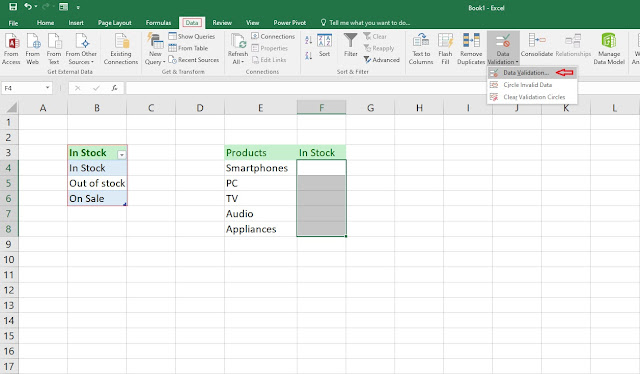
Hello again guys and welcome to another tutorial where this time I'm going to guide you on how to create a very simple drop down function in Excel. In this beginners tutorial we are going to use a simple stock guide for some of the products and once we're finished with this tutorial you can go ahead and create a drop down function based on your needs. 1. The first thing you should do is create your product list and fill the cells under that category. Now that you have done that go on another cell and create a table containing the list that you wish to be shown under the drop down function. After you've done all the steps, head over to Data > Data Validation where a window will appear under the Data Validation category. 2. Next, under Allow select List for the validation criteria to be in function. Now, under source select the table icon as seen on the picture below. ...
How to create a data entry form in Excel that includes math formulas - Video showcase
- Get link
- X
- Other Apps
By
Jasmin Adili
How to create a data entry form in Excel that includes math formulas
- Get link
- X
- Other Apps
By
Jasmin Adili
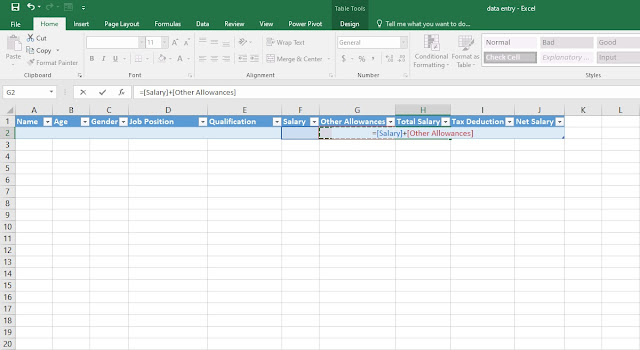
This data entry form is very similar to the previous post (Student data entry) except this time we're going to create this data entry form to work related tasks. If you don't know how to enable the data entry form in Excel visit the previous post: https://letslearnitnow.blogspot.com/2019/12/how-to-create-simple-student-data-entry.html 1. In the meantime, write down the categories as seen on the picture below and insert as a table. Now we're going to integrate a couple of math formulas on some of the cells. So under the Total Salary cell write down the formula =F2+G2 2. Step two, we're going to type the formula for the tax deduction. What you need to do is just under the Tax Deduction cell write down =H2*18% , that is going to calculate us the 18% tax of the total salary. 3. Step three, under the Net Salary cell write down the formula...
How to create a simple student data entry in Excel - video showcase
- Get link
- X
- Other Apps
By
Jasmin Adili
How to create a simple student data entry in Excel
- Get link
- X
- Other Apps
By
Jasmin Adili
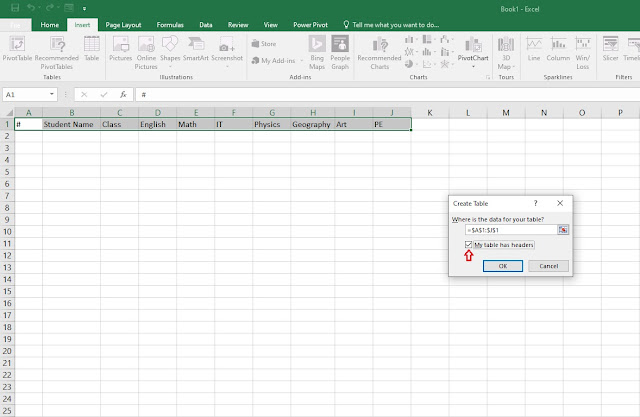
Here's a very easy and simple student data entry tutorial that I'm going to show you how to do it in very easy steps. Once you get around this tutorial you can create one for yourself using different categories, depends how it suits your best needs. So, let's get started! 1. First step, write down the categories as seen on the picture below, select all the cells > insert table > My table has headers > OK. 2. Step two, once you've created the table go to File > Options. 3. Step three, once you click options, a window under the name excel options is going to appear where we have to enable the data entry form command. - Click the Quick Access Toolbar and under Choose commands form select Commands not in ribbon. - Scroll down until you find Form, click the ADD>> button until the Form is shown on the right window and click OK. 4. Step four, aft...
How to create a simple database in Excel - Video showcase
- Get link
- X
- Other Apps
By
Jasmin Adili
How to create a simple database in Excel
- Get link
- X
- Other Apps
By
Jasmin Adili
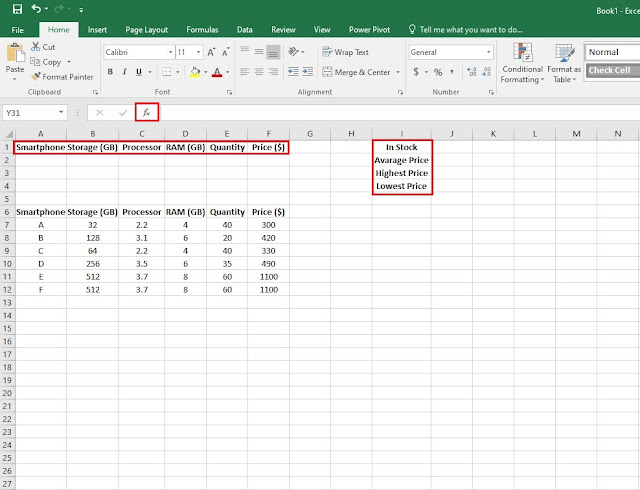
In this step by step guide, I'm going to show you how to create a quick and simple database using Microsoft Excel. Even if you've just started using Excel for the very first time this tutorial doesn't require any intermediate skills, all you have to do is follow the logic behind the steps that will create this database function. For this database we're going to use the DSUM, DAVARAGE, DMAX and DMIN functions. 1. Step one, have an idea on what your database will consist of, in my example I have used a simple smartphone database. So, from cells A6 to F6 write down the categories on what your database will consist of and whats you did that make sure you highlight the categories with Bold and fill the cells below with the required information. As you can see from the example below I have filled the necessary information to each category. - Once you're finished with the first step, note that as seen in the example below in the highlighted cells...