Posts
Showing posts with the label how to create a chart in excel
How to create a unique target chart in Excel
- Get link
- X
- Other Apps
By
Jasmin Adili
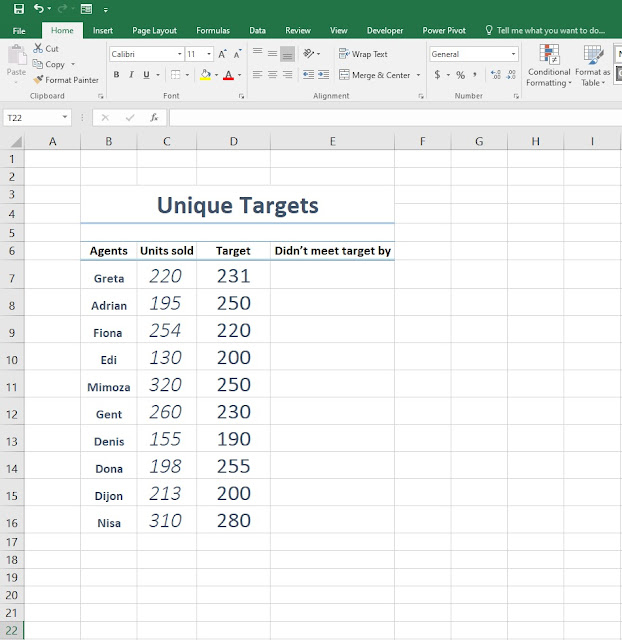
Hello everyone, and welcome back to another tutorial where this time we're going to create a unique target chart using Microsoft Excel. If you've followed the previous posts you will get the idea on what we will try to do and shouldn't have any difficulties whatsoever. 1. First step, fill in the cells with the information given bellow. Once we're finished with this tutorial you can create the table based on your needs and preferences. 2. Step two, by now you probably noticed the headers consisting the Agents, Units sold, Target and Didn't meet target by. What you will do now is under the Didn't meet target by cell type the formula =MAX(D7-C7,0) in order to avoid the IF function we've added MAX instead, where we set 0 as our number limit so we don't have net results like -12, -25, -36 etc. 3. Step three, we've added another header Target overachieved where we will type the formula...
In cell vs target chart - video tutorial
- Get link
- X
- Other Apps
By
Jasmin Adili
In cell vs target chart in Excel
- Get link
- X
- Other Apps
By
Jasmin Adili
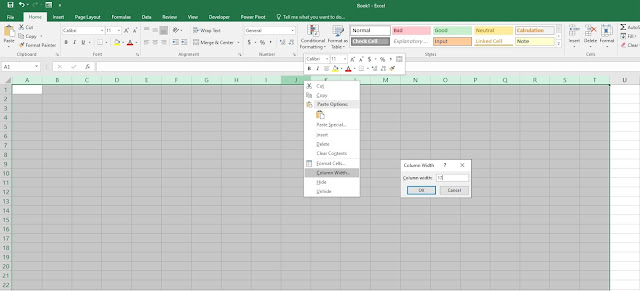
Hello everyone and welcome to another tutorial where this time we're going to follow through our last exercise where we tweak some things and finish it off with a chart. 1 Step one, select the columns from A to T (or to any column you feel it's far enough), Right Click > Column width and set it to 17. 2. Step two, fill in the cells with the order you see in the picture down bellow. 3. Step three, under Conditional Formatting format the new rule and under Value > Maximum make sure you select the cell right beside Goal. You probably know by now how you're supposed to format your new rule. If you're new to this tutorial then please visit our last exercise: https://letslearnitnow.blogspot.com/2020/04/how-to-create-actual-cell-vs-target.html 4. After you've successfully created the new rule, please do edit and format the table so it will have that clean l...
Video showcase on how to create a graph chart in Excel
- Get link
- X
- Other Apps
By
Jasmin Adili
How to create a graph chart in Excel
- Get link
- X
- Other Apps
By
Jasmin Adili
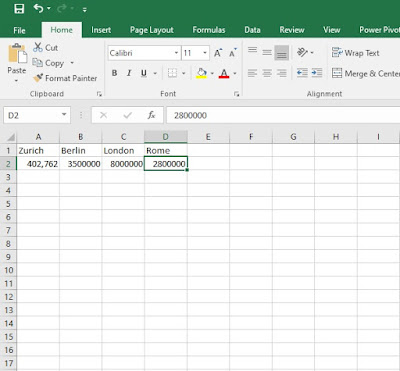
Hello everyone and welcome to another tutorial where this time I'm going to show you a simple step by step tutorial on how to create a graph in Excel in just under a minute. Firstly , before you start open Excel under a blank workbook and for a more simplified execution of this task as an example I'm using here city names and their population, that's what our graph is going to consist of. 1. First step what you're going to do is on the A1 to D1 column write the city names that you would want to use. After you've done that, on the A2 to D2 column write the population of those cities as in my example. 2. Step two, (make sure you've selected all the columns from A1 to D2 ) go to Insert and select the desired graph that you would want to use. In my case it's Insert statistic chart. As you can see from the picture below, on the red rectangle you can select different graphs and charts to choose f...